

Key takeaways:
- What is the main benefit of document workflow automation? Automation makes your document workflows more efficient, so you can complete processes faster, reduce manual effort, and eliminate human errors.
- How can automations streamline document creation? Automated templates can pre-fill essential information, saving time and standardizing the content and structure of your documents.
- What role does generative AI play in document development? AI can generate, summarize, and edit the content for your documents. It also powers many of the integrations a team can use to share the information needed to start work on new documents.
- Why is automated document storage beneficial? Clear filing systems facilitate easy access and promote scalability by allowing team members to find and replicate successful documents.
- How does Wrike enhance document workflow automation? Wrike’s all-in-one platform uses rule-based automation triggers at every stage of the document process, integrates with over 400 platforms, and includes robust security measures for sensitive data.
A standardized workflow is essential when you’re dealing with a large number of documents. But when those workflows rely on manual updates, they’re laborious, repetitive, and prone to errors. Automating your document workflows gives you more consistency and more control over the way your files are created, reviewed, approved, and stored.
You can find opportunities to introduce time-saving, user-friendly process automations at every stage of the document workflow. Here, we’ll show you how, with tips and tricks to automate everything from file creation to archival at the end of the document lifecycle.
This guide covers:
- A brief introduction to document workflow automation
- Examples of document workflow automations across different lifecycle stages
- The benefits of document workflow automation for your team, with real-life statistics from teams like Moneytree (a financial services organization), Kalexius (a legal services firm), and Jellyfish (a marketing agency)
- Five steps to prioritize workflows to automate and put those automations in place
With a deeper understanding of how document workflow automation works, you can boost adoption, integrate the tools your team relies on, and bridge more gaps in your key business processes.
What is document workflow automation?
Document workflow automation means using technology to make manual steps in your workflow automatic. Automations are commonly used to create, populate, summarize, route, or archive documents without the need for a team member to step in and complete the process manually.
Automations can handle much of the heavy lifting when it comes to producing the documents your team needs. However, most automations are simple to set up and understand because they’re essentially rule-based: when one action occurs in your document management software, it triggers another.
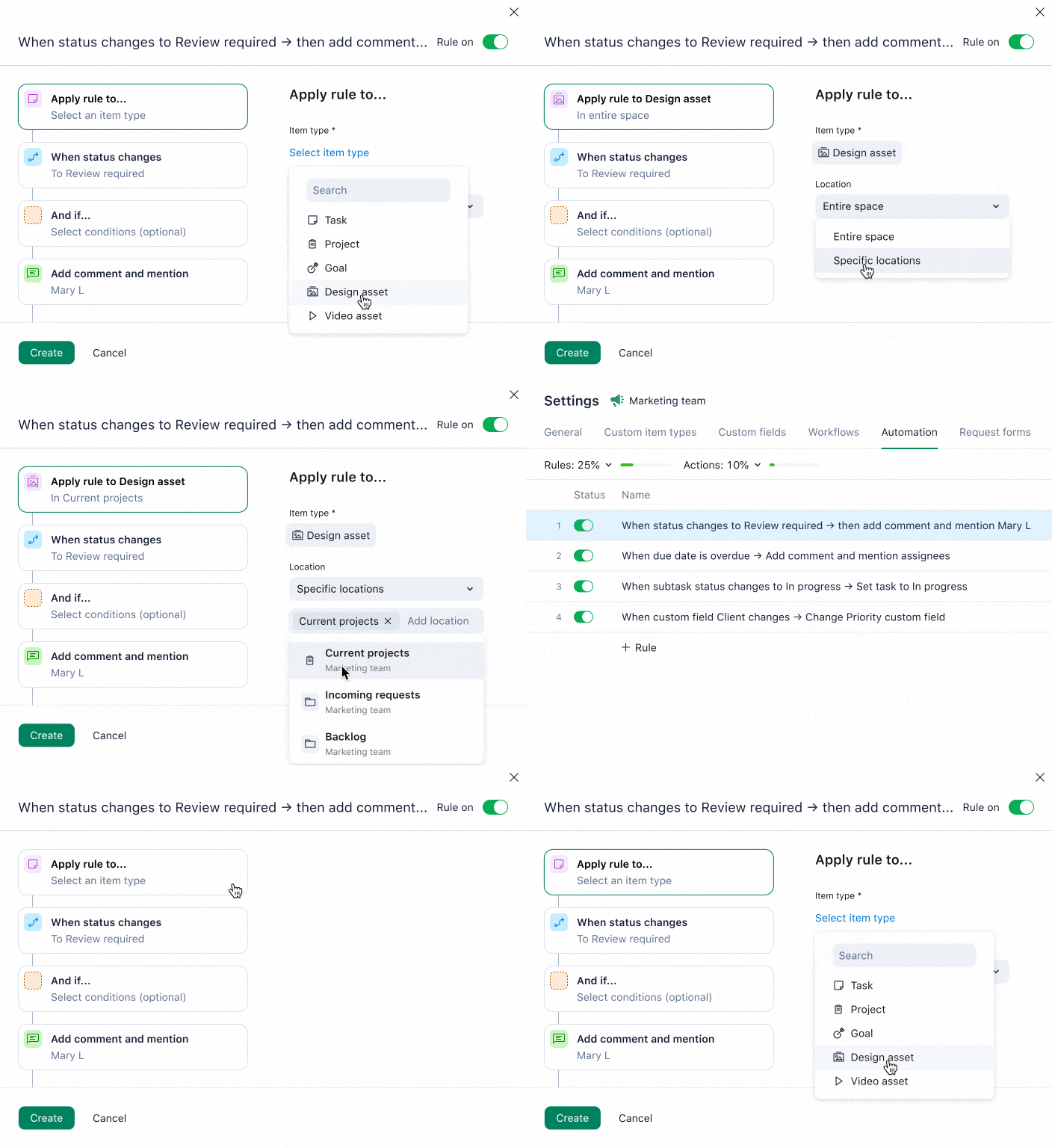
Plus, because many work management platforms (like Wrike) offer ways to automate existing processes once you’ve got a good understanding of them, automating your document workflows means you don’t have to rebuild your system from scratch.
Examples of document workflow automation
Chances are, any type of document you regularly create has a sequence of repetitive tasks that can be templated – and therefore, there will be opportunities to automate tasks or workflow stages.
This is true for a range of different use cases:
- Sales and marketing teams send proposal documents and quotes to their leads. These quotes have to contain the same types of information each time, even if the data and design elements change. These posts can be automated with programs that transfer data from a company’s CRM or lead management platform to the templates to produce attractive proposal documents faster.
- HR teams commonly send onboarding documents to new hires when they join. The processes of adding the new hire’s details to these documents, sending them out, filing their completed contract, and recording their progress through their initial training can all be automated, slashing the time HR spends checking in.
- Legal teams need to maintain certain documents, for example, to comply with data protection regulations like GDPR, CCPA, or HIPAA for healthcare projects. Automations can standardize the team’s approval process and route documents to secure folders when they’re completed. If information needs to be destroyed after a certain period of time, they can remind the team members responsible for doing so.

Let’s look at the best workflow stages to automate, from ideation to final approval — whatever industry you’re in.
Streamline document creation
Automations and integrations can dramatically reduce the amount of time it takes to create a new document. What’s more, starting with an automated document generation template standardizes the files your team relies on, eliminating data entry and other manual processes and giving them access to all the information they need from the beginning of the workflow.
Imagine your team regularly sends contracts to service providers who work with your company.
A manual workflow process would require you to open a new file, rewrite familiar headings, and input data like dates and contact details every time you request a new service. But with automations in place, you can start with a document that already includes essential information like job numbers, dates, and payment details.
For example, with Wrike, you can create a custom item type or a dynamic request form for this kind of service request. Then, every time you begin to create this document type, you can quickly populate a template with the information you need to get started, add it as a task to your project dashboard, and start recording the work your team is doing.

Essentially, automations at the beginning of your document management workflow streamline two vital elements:
- Document content: Digital document creation reduces your team’s checklist by extracting content from your records and adding it to documents in different formats. Then, after the intake stage is complete, AI-powered automations can transform the information you’ve gathered into complete documents to support your team as they start work.
- Document location: Your workflow also guarantees your documents are created in the right place — in the case of Wrike, in a project folder with customized access controls. Without this step, it can be harder to find and share the files later. By automating your document management system, you can prevent problems like duplicating files, sharing outdated versions with your stakeholders, or losing files you need for a compliance audit trail later.
Boost collaboration during document development
The process you use to develop a document will be unique to your team. However you prefer to share ideas and collaborate on your work, you’ll find areas where automations can help you work more closely and productively.
For example, automations can support you when it comes to:
- Content creation: Using generative AI and machine learning, teams can flesh out their notes, generate ideas, and create first drafts of their content. With Wrike, this includes tools to surface highlights from your current projects, summarize content, or edit your work for tone, brand, and personal voice.
- Live editing: Using a tool that sends automatic notifications to the right people when edits and discussions concern their work means you can make changes and suggestions in real time. Wrike’s document editor, as well as our proofing and review automations, shift the editing process from a list of feedback detached from the work to a collaborative system where you build the work together.
- Reminders: As your work becomes more complex or the number of documents in your project grows, you might run into issues with time management. Automations can help stop documents from falling through the cracks. A project manager can automatically send reminders to the people working on the documents to request status updates, alert them to upcoming deadlines, or check in when the project is at risk.
Together, these tools make it easier to make suggestions, incorporate feedback, and work collaboratively to produce the best version of your document. With Wrike’s document workflow automation software, this happens in real time — even in a distributed team.
Create a dependable document storage system
The essential final stage of any document creation workflow involves archiving the work and the metadata you’ve created. There are two major benefits to getting this workflow stage right:
- Filing documents clearly makes it easy to locate them again: At the end of a project, you might have to revisit the assets you’ve created. Routing documents to a specific folder where you can access them easily can make all the difference if the team needs to review them later. Plus, if your team members change in the middle of a project, a standardized filing system makes it easier to hand over the work or onboard somebody new.
- Successful business documents can be templated: When you review your work, you might decide there’s an aspect you’d like to replicate next time. It’s easier to create a document template if you can find the original and use it as a blueprint for a recurring task. In addition to a seamless process with reduced human error, these document blueprints provide greater scalability for future projects.
Document workflow automations for file routing give you this watertight system without any additional effort on your team members’ part, and ensure that every document you produce follows the same dependable process.
Benefits of document workflow automation
If your team has any type of core, shared document workflow, there are likely huge benefits to automating it, including:
- Speed
- Efficiency
- Consistency
- Compliance
Below, we’ll explore each of these benefits with real-life examples from different industries.
Speed
Document workflow automation significantly reduces the amount of time documents need to spend at each workflow stage. This makes it faster and easier for each subteam to complete the tasks that land on their desks — no matter what stage of the workflow they’re responsible for.
As a result, the turnaround time for your documents gets slashed. For example, a simple communication notification in Wrike helped the team at Moneytree reduce their approval process from seven days to one.
The tool is interactive and we see everything in real time. We’re all working collaboratively together instead of alone waiting for emails. I have visibility on all projects.
Denise, VP of Marketing & Training, Moneytree

Efficiency
Automated document workflows are a more efficient way of working. Many of the repetitive processes a team works with involve data entry, document classification, version control, and filing. All these processes can be optimized with a rule-based, no-code automation trigger.
By using Wrike’s AI tools for the repetitive aspects of their documents, the creative team at Jellyfish has freed up more time to concentrate on relationship building and the innovative work they produce for their clients. As a result, Jellyfish has set a new standard for efficiency in their agency, logging 95% less time summarizing client calls and action items.

I just clicked the button in Wrike and watched everyone’s jaws drop as it instantly did the work that probably would have taken me a couple of hours, right before their eyes.
James Ball, Vice President of Project Management at Jellyfish

Consistency
Automations can improve the quality of the documents your team produces by ensuring all your work passes through the same development and approval stages. This is particularly valuable for client work, where a custom document workflow, with appropriate automations, ensures your team works to their preferences and records the feedback they receive.
The legal team at Kalexius uses Wrike to manage projects that typically contain 1,000 contracts each. With Wrike, they have complete transparency. They save about 20% of their time because their documents are more accessible, and more importantly, they “have a record and visibility of everything that’s being done,” to ensure all the work is completed to the same high standards.
I would really recommend Wrike for everybody, even in your personal life.
Stella Petersen, Head of Legal Operations
Compliance
Automation strengthens compliance by including checks, guardrails, and secure data handling as unskippable steps in your process.
Your approval workflows keep a human in the loop and ensure that non-compliant documents are never distributed, and every automation that’s triggered creates an audit trail. Plus, if rules and regulations are updated, you can use your document workflow software to adjust your process and show your team how to meet the latest requirements.
As you get to know your workflow better, you’ll naturally find areas where it could be sped up or made more efficient. Sometimes, this leads teams to cobble together a series of automation solutions over time.
Say team members start with a spreadsheet to list their task statuses. They might bring in a Slack notification to alert team members when that shared resource is updated. Then, they might branch into workflows that take care of one of those workflow stages, like proofing. This leaves them with a workflow that technically contains a series of automations — but only if they jump between different platforms to take advantage of them.
Your initiatives will benefit from document workflow automation far more if you manage them in a single, powerful workflow management platform (like Wrike).
5 key steps to document workflow automation
Regardless of the document workflow software you use, the process of building an effective automation system follows a clear path. You can use the steps below as a practical framework for building (or rebuilding) a workflow that saves time and scales with your team.
1. Choose the right process to automate
Not every workflow is a good candidate for automation — many require oversight from team members, or are unique to a certain project. So, start by looking for document processes that are:
- Repeatable, created and shared regularly across the team
- Manual, involving handoffs, copying data, collecting e-signatures, or other hands-on steps
- Time-intensive, draining attention from other aspects of your team’s work
Once you’ve selected a workflow, it’s important to break down its existing stages to understand where automation will have the greatest impact.
2. Map the workflow from start to finish
Outline each stage a document passes through, from creation to final approval. It can be helpful for teams to use a workflow diagram at this stage — simple flowcharts or Gantt charts work well for showing each step and the dependencies between them.

Pay close attention to handoffs and approval stages. Identifying dependencies — such as design assets that must be completed before final sign-off — makes it easier to spot potential bottlenecks and gaps where automations can keep your work moving.
3. Define owners, contributors, and permissions
List everyone involved in the document lifecycle and clarify their roles. Some team members will be responsible for completing the tasks, while others will oversee them and have ultimate accountability for the workflow stage. Naming these people or defining the job roles ensures the workflow provides the right level of access without introducing risk or confusion.
As you complete this step and discuss the workflow with your team, you should also gather feedback from stakeholders. Their firsthand experience of the existing manual process can highlight inefficiencies and inform the automations you prioritize.
4. Select tools that support the full workflow
Once you have a clear idea of your process, you can evaluate tools based on how well they support your end-to-end document lifecycle — not just individual tasks.
Look for solutions that offer collaboration tools and task management dashboards to bring more of your processes into one platform, as well as seamless integration with other tools — like your CRM or the software used by your financial services team. The best workflow automation tools will allow you to customize the workflow stages as well as the triggers themselves.
5. Standardize with templates
Create templates and automation rules that can be reused across documents to ensure consistency and speed.
Then, once the workflow is live, onboard your team and start tracking performance.
Remember, automation is a process. It’s important that you regularly review how the automated processes are being adopted, gather feedback from your team, and monitor your project KPIs. When you analyze this data, you could find more opportunities to refine your automated workflows, expand your automation and digitization efforts across additional processes, and maximize the benefits for your team.
Automating document workflows with Wrike
Wrike is an end-to-end solution with industry-leading features for workflow automation.

Unlike other workflow management software platforms, Wrike’s exhaustive list of integrations means you can automate entire document workflows — no matter how many tools you need to bring in — without leaving the platform where you manage your projects.
Streamline document creation across your organization
Wrike’s complete workflow management system keeps your entire team on schedule and up to date with every aspect of document creation. When your document workflows are shared, bringing in input from your clients or expertise from other areas of your company, Wrike closes the gaps.
With Wrike, you can break the most complex, cross-functional document workflow down into clear subtasks — our Work Intelligence® AI will even generate suggested steps. Then, when you can visualize the way the document moves between specialties, you can set up a workflow that:
- Streamlines handover by including the document’s task history, brief, and supporting information on the task card you share.
- Simplifies document sharing by using a system of cross-tagged project folders to keep every team working on one master document, rather than several duplicate versions.
- Keeps your work secure, with permissions customized to one of four access roles, so you can separate work for different clients, or keep sensitive information about your project performance confined to your PMO reports and dashboards.

By streamlining the way your documents are shared, discussed, and edited, Wrike optimizes your document workflows not just within teams, but across your company.
Track and manage your documents the way you want to
Wrike’s automations extend far beyond document writing and storage. With our tools, you can also use automation to improve the way you monitor your team’s progress through their tasks.
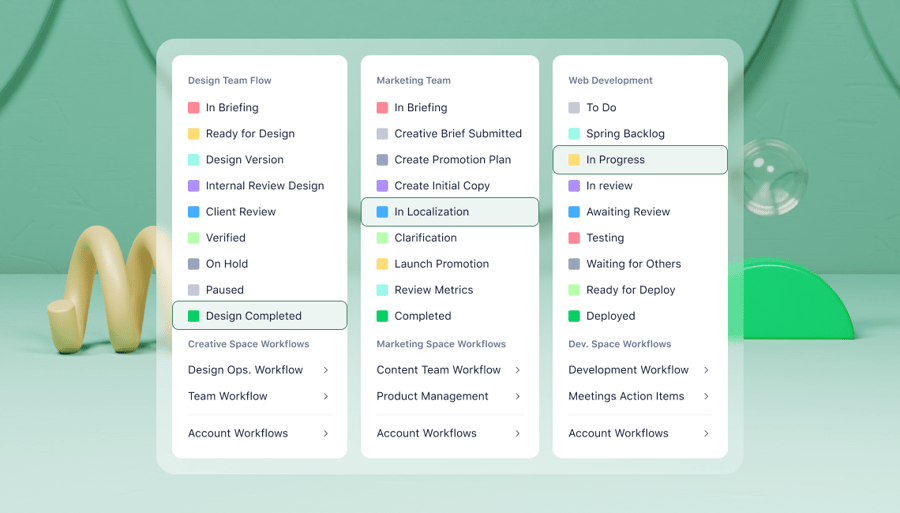
In Wrike, the documents you produce are represented by task cards, which are connected throughout your workspace. Every time someone updates a card — a status change, a change of ownership, an emerging risk to the next milestone — your overview updates across Wrike automatically.
When you monitor your workflows with our platform, you can access project dashboards that act as a central source of truth for your projects. This helps you track the status of all the documents you’re developing through their unique workflow stages in real time.
Wrike also includes:
- Kanban project boards, so you can track your documents as they move forward and backward through your document creation and approval process.
- Gantt chart project schedules that show the dependencies in your workflows and the critical path to completion.
- Table Views of your workload, so you can view your progress and see which team members are working on certain documents at a glance.
- Personal dashboards for each team member, to show them where their attention is needed, and how their work fits into the bigger picture.

Make decisions with real-time data
As well as helping your team work more cohesively, Wrike’s automations mean the decisions you make about your documents are based on the very latest data on your workflow performance.
When you complete and monitor your work in Wrike, you can use our project reporting software to filter the data from your workflows and generate reports on the KPIs you want to monitor.
Among many other things, these custom reports can tell you:
- How many of your documents are overdue
- Which of your team members is over capacity
- How long your documents spend in the approval queue
- Which documents have been sent back for a new draft after review by your manager or client

When you compare these reports week to week, you get a better view of how your team is performing, where you need to adjust your approach to make the most of your resources, and even where an additional automation would help lighten the load. In the latter case, Wrike can even suggest new automations, based on the data collected on your team’s performance, the integrations you use, and the way your files move through the workflow.
Frequently asked questions (FAQs) about document workflow automation
What is document workflow automation?
Document workflow automation is a set of processes used to manage, route, and process documents automatically instead of relying on manual steps. It reduces repetitive tasks like data entry, approvals, and archiving while improving speed, accuracy, and visibility for teams.
How can document workflows be automated?
Document workflows can be automated using tools that capture data, apply rules, trigger notifications, and integrate with existing systems. Common methods include form automation, document templates, and integrations with CRMs, ERPS, and cloud-based storage.
What is the best way to automate document workflows?
The best way to automate a document workflow is to map your existing process, identify the most time-consuming or error-prone steps, and choose flexible tools that integrate with your current system to implement the automation triggers.
What is an example of document workflow automation?
When an invoice is processed, automations can capture the invoice document, validate it, route it to the appropriate manager or job role for approval, and post it automatically to your accounting systems. This eliminates manual data entry and speeds up the payment cycle without duplicating the file.
What workflows benefit most from automation?
Workflows with high-volume, repetitive tasks and handoffs benefit most from automation. Common examples include invoice or expense request processing, contract approvals, onboarding, compliance reporting, and customer intake.