It can be challenging for content operations departments to manage their workloads. The to-do list grows every day, with multiple current tasks, ongoing discussions, and a constant flow of new requests. Content operations teams need to be organized, so that requests are triaged efficiently, file versions can be easily found, and completion is delivered on time.
Wrike’s content operations template makes it easy to tailor the perfect workflow for your team. Transform your intake with customized content briefs that capture all the details you need. Visualize all your tasks in one place, fast-track approvals, and track progress with productivity dashboards and editorial calendars. Get your content to market faster than ever.
Discover how Wrike’s game-changing features can help you streamline and accelerate your content operations processes.
Optimize work requests
Simplify your intake with Wrike’s custom content request forms. Easily tailor the language for your team and design a layout that captures all the information you need. Create custom fields, conditional steps, and automatic assignees in seconds.
View project progress
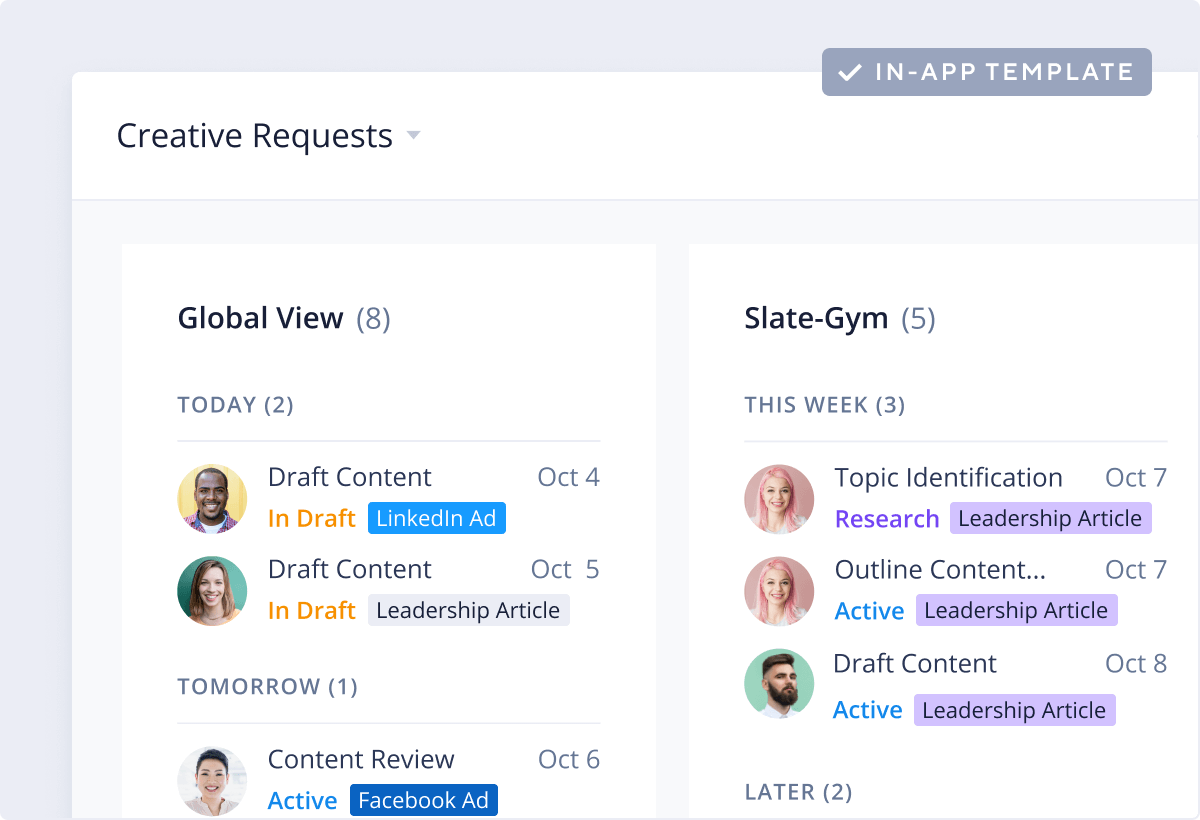
Create a custom dashboard to track the progress of creative assets as they move through the various stages from “In Production” to “Review” to “Completed.” Spot bottlenecks at a glance to keep momentum moving and delivery on schedule.
Accelerate approvals
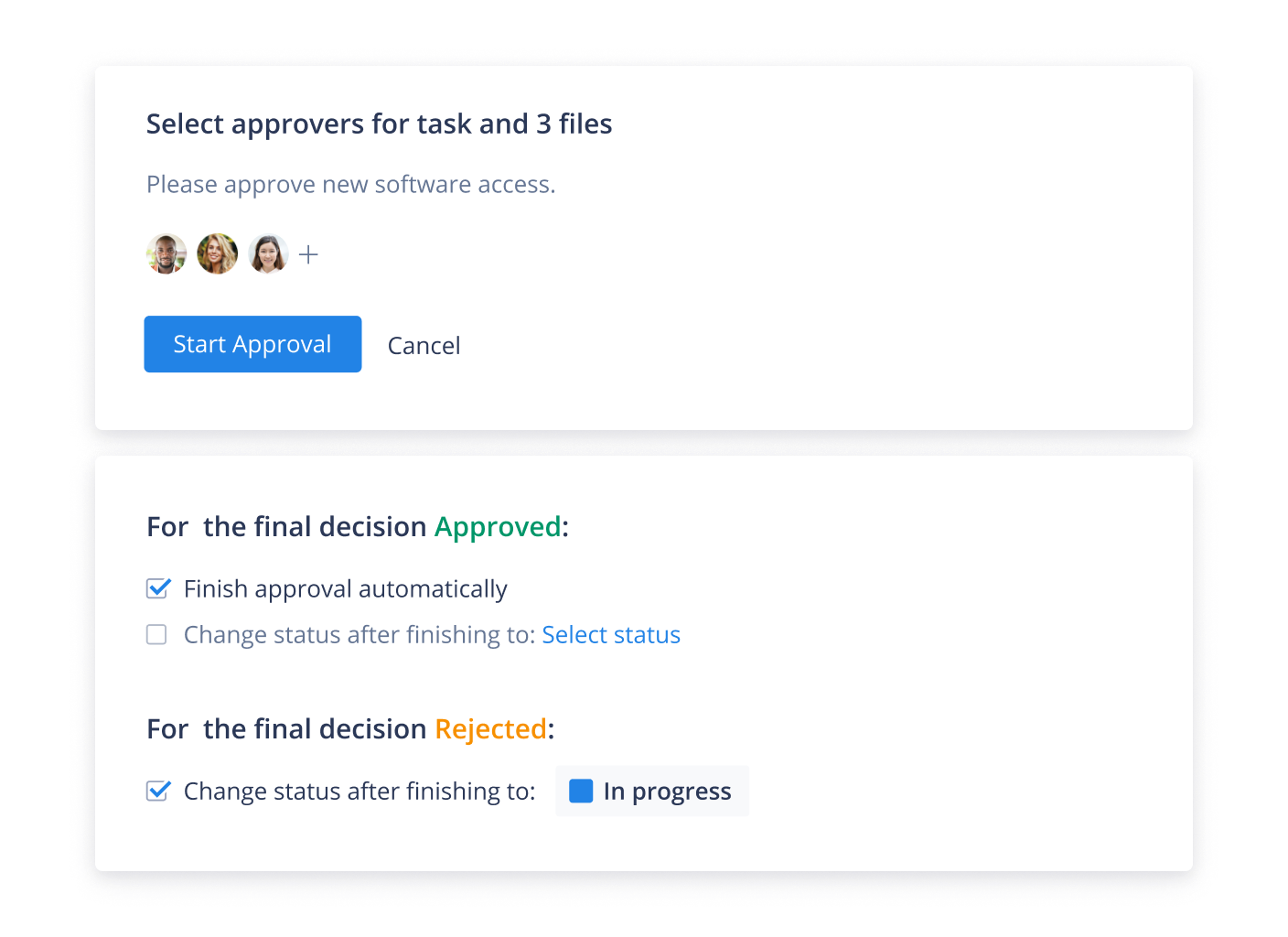
Simplify your content approval process with Wrike’s content operations template. Store and organize assets for easy access and in-context editing. Use automation to prioritize tasks by date, send reminders to approvers, and push progress forward.
Track timelines
Get a bird’s-eye view of your content operations with Wrike’s calendars. Use filters to visualize due dates, tasks, and different calendars. Share with internal and external stakeholders to keep everyone on the same page.
Execute content faster
Free 14-day trial. Easy setup. No credit card required.
Department request dashboard This template includes a pre-built department request dashboard that gives you a bird’s-eye view of all your activities. Create your own widgets and color-code status or assignee labels. Find out more about Wrike’s project dashboards.
Structured request forms Centralize and organize your intake with Wrike’s content request forms. Use custom item types to create the perfect brief for your team, with tailored questions to gather all the information you need to get started fast.
Shared content calendars Manage multiple content creators’ schedules with Wrike’s shared calendars. Use filters, color-codes, and layers to view only the information you need, whether it’s a writer’s workload or key campaign deadlines. Share with stakeholders in seconds.
Custom item types Work your way with Wrike’s versatile custom item types. Tailor your workspace with language, sections, and fields that reflect your content operations. Create a library of common custom item types like blog posts, brochures, or website content.
Content dashboard Get more out of your day with Wrike’s personal productivity board. Check your to-do list, track your content production progress, and get fast access to important files, forms, and feedback. Toggle to display only high-priority tasks or projects.
Custom workflows Use Wrike’s custom workflows to fully optimize your content operations. This template comes with statuses like "content review", "waiting on others", and "needs more info" but you can customize these to suit your team’s way of working.
Proofing and approval tools Speed up your sign-off process with Wrike’s powerful proofing and approval software. Add comments in-context and in real time, view side-by-side versions, and store all assets securely for easy access by internal or external reviewers.
How to use Wrike’s content operations template
This content operations template will help you organize, streamline, and accelerate your organization’s creative output.
When creative assets are required, the requestor answers questions listed on the template’s request form. These include: what is the project description? What type of content is being requested? Who is the target persona? When is it due? When it’s completed, they’ll submit the request form to the marketing project manager or traffic manager.
Step 2: Organize intake
The request form will come in via your intake folder. Take a look at the details and ensure all the necessary information has been provided for your team to start the task. Cross-tag the request and add it to the relevant folder or folders.
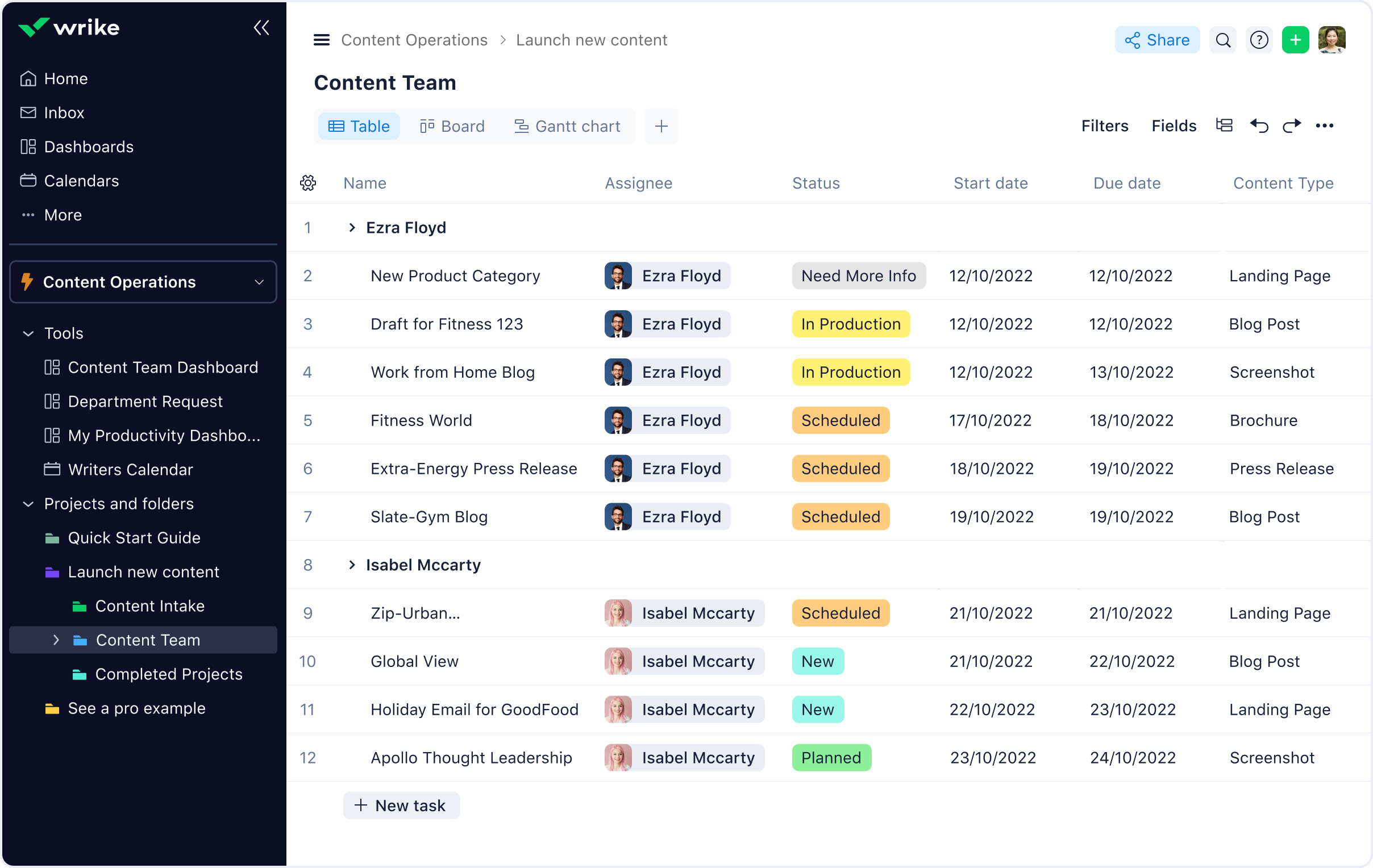
Now, you must check if your team has the capacity to complete the task. Consult your team’s tasks to see who has the most bandwidth and assign your task accordingly. Want more visibility on your project timeline? Switch from Table view to Gantt chart. Drag and drop tasks, add dependencies, and move milestones with a single click.
Step 3: Kickstart workflow
Remove the project from your intake folder to initiate the next stage of content operations. You can tweak the settings so this action triggers a status change (e.g., move to “Content Review” or “In Revisions”).
Use the customizable workflow to update task statuses and track progress. Get a bird’s-eye view of your projects with an easy-to-configure Gantt chart. Create individual folders and subfolders for each task to eliminate confusion once and for all.
Step 4: Manage approvals
It’s important to keep track of your creative assets as they move through the various stages of development — from “In Production” to “Review” to “Completed.” View this information at a glance with Wrike’s custom dashboards so you can update clients instantly.
Give each team member a clear view of their current tasks, and connect each task to its relevant campaign to keep other stakeholders in the loop.
Simplify your writing, editing, revising, and approving processes with Wrike’s content operations template.
Content operations resources
Create powerful content with Wrike’s marketing assets.
Wrike’s content operations template helps gather critical information to complete incoming requests more effectively and efficiently, boosts team workload visibility, and enables content operations teams to streamline their processes.
Marketing departments and creative teams can use the content operations template to get a better understanding of incoming requests and manage ongoing tasks with individual dashboards and shared editorial calendars.
If you have a Wrike account, simply follow these instructions. Don’t have a Wrike account yet? No problem! Simply click the button below to start a trial with this template.
The content operations template is designed to help content production teams move seamlessly from ideation to publication. It’s suitable for small or big teams, in a marketing department, advertising agency, or any creative organization.
Yes, this content operations template is free to use as part of Wrike’s two-week trial. Start using it today and take control of your content processes now.
You might be interested in these templates
Content Calendar Template
A editorial calendar template is a critical tool for releasing content on a regular basis. This free content calendar template will help your team manage your content production schedule with ease.
Marketing Campaign Management
A basic template for classic, timeline-driven campaign planning. Organize marketing campaigns into actionable items, assign due dates, and track progress on a Gantt chart.
Creative Request Form Template
Organize your workload and keep your inbox clear of emails requesting your creative expertise. Our creative request form template can be tailored to your unique way of working and help you prioritize tasks.
Content Calendar Template
A editorial calendar template is a critical tool for releasing content on a regular basis. This free content calendar template will help your team manage your content production schedule with ease.
Marketing Campaign Management
A basic template for classic, timeline-driven campaign planning. Organize marketing campaigns into actionable items, assign due dates, and track progress on a Gantt chart.
How to install this template in your account
You can only access this template when you create a new space. You can access the use case templates gallery through the space creation wizard. When you opt to create a new space, the template gallery opens by default.
Click the “+” button in the upper-right corner of your workspace.
Select “Space.”
On the page that opens, hover over the use case you want and click “Preview.” Look for the “Content Operations” template in the list (use the search bar if needed).
Now, you can see more information about the use case. Click “Select” to create a space.
Yes, there are.
To use this template, you need to have at least the Business plan or up. Check our plans here.
You must have the required permission to create a public space in your account.
If the template contains account-level custom fields, custom item types, workflows, request forms, or automation, you must have the permission required to create those items.
This template is only available when the workspace language is set to English.
Check the prerequisites above. If you don’t match one of the prerequisites, talk to your space admin or your account owner. If you match all the prerequisites and you still can’t see the “Content Operations“ template, feel free to reach out to the Wrike support team.
Unlock the power of Wrike’s templates
Use our smart search tool to explore versatile templates, designed for easy customization and streamlined project management.
Wrike enhances its website search experience using Google's Vertex AI Search and Conversation generative AI service. Users are cautioned that generative AI might produce inappropriate, inaccurate, offensive, or unintended results, and are advised against submitting explicit, harmful, offensive, or illegal content as search input. Neither Wrike nor Google uses your search inputs to train its machine learning models or for advertising purposes, but search activities may be collected and/or stored via cookies in accordance with our Privacy Policy if you previously registered on our website. These cookies can be deleted through your browser settings. Wrike's search service is not designed to be used in connection with your personal data or any sensitive data of any kind, which users must refrain from inputting.