With so many tasks to juggle at work, it can be hard to achieve everything you’d hope to in your working day, but planning can help. With the daily activities tracker from Wrike, you can set achievable goals that can be ticked off throughout the day and manage your workload effectively.
Do you have issues with:
Forgetting tasks?
Meeting deadlines?
Switching off?
Eliminate these obstacles with Wrike.
Make lists of all your tasks so you can refer to your template and never forget a responsibility again
Input individual deadlines for all of your tasks so you can prioritize your workload and ensure everything is submitted on time
Set achievable goals for each day so you can switch off from work when those tasks have been completed
Why you need the daily task tracker template
Disorganized tasks
Categorize, prioritize, and list your daily tasks in a way that works best for you and your workload, and customize your approach. With Wrike’s daily task template, you can set reminders for each task.
Poor clarity
Our daily tracker template gives you a full perspective of your entire workload, so you can see the big picture while also breaking tasks down into small sections.
Lack of collaboration
You can share your personalized daily task tracker with others in your team so they can select items to add to your list and get updates on your progress.
This template guide demonstrates how to utilize the daily task tracker in just a few steps.
Access the daily task tracker through a request form
Organize individual tasks in structured folders and projects
Track task progress and statuses through holistic dashboards
Step 1: Create a new task
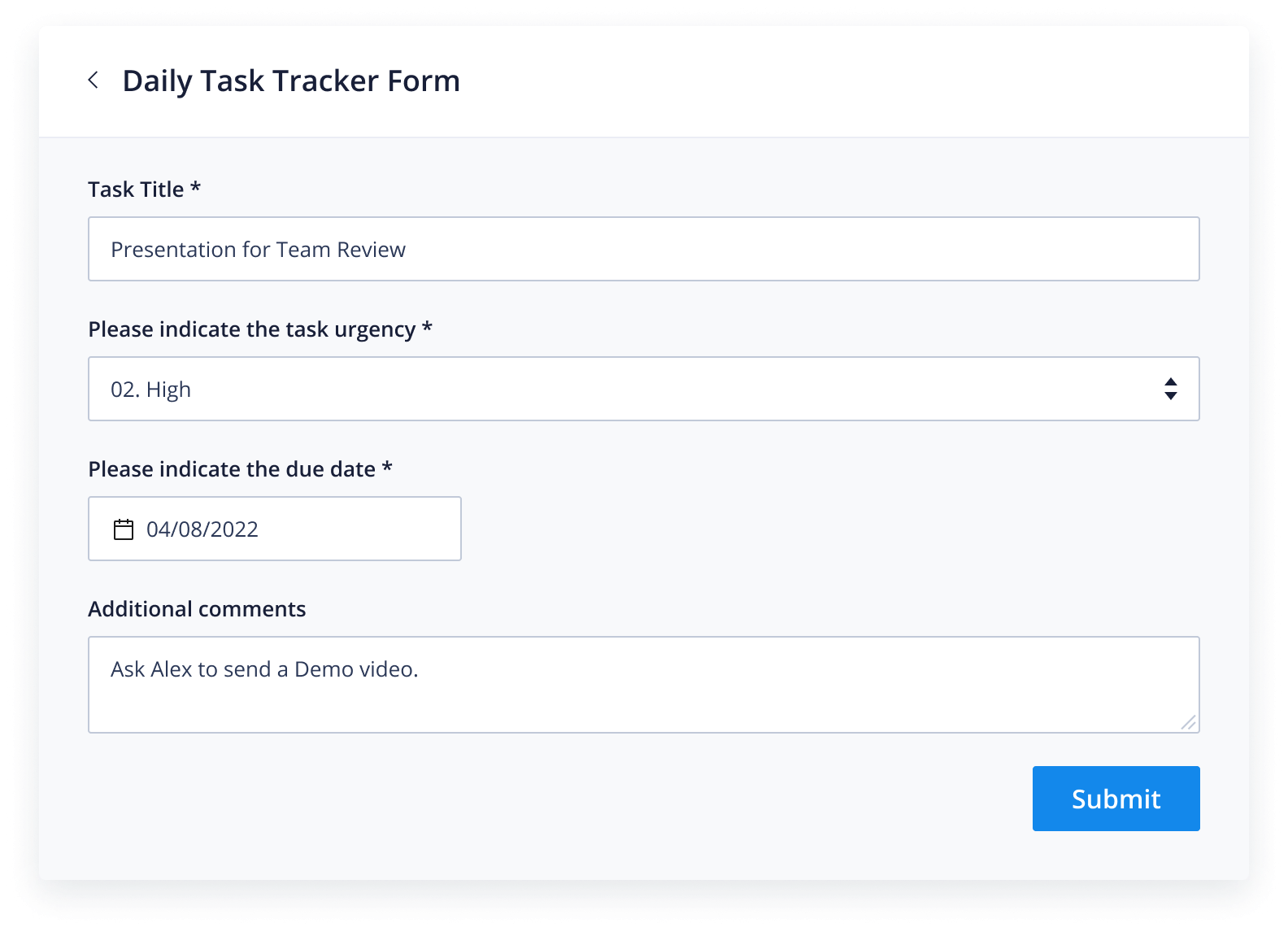
You’ll need to create a new task to fill your task tracker with. Head over to your request forms via the green ‘+’ button at the top right of your dashboard, and access the daily task tracker form. Fill it out with the necessary details, including the task title, urgency level, due date, and any additional notes for context.
Step 2: Locate and view tasks
Once the task is created, it will be automatically sorted into the appropriate task priority folder, along with any additional information and context you added.
Tasks can also be viewed through each of the following visualization tools:
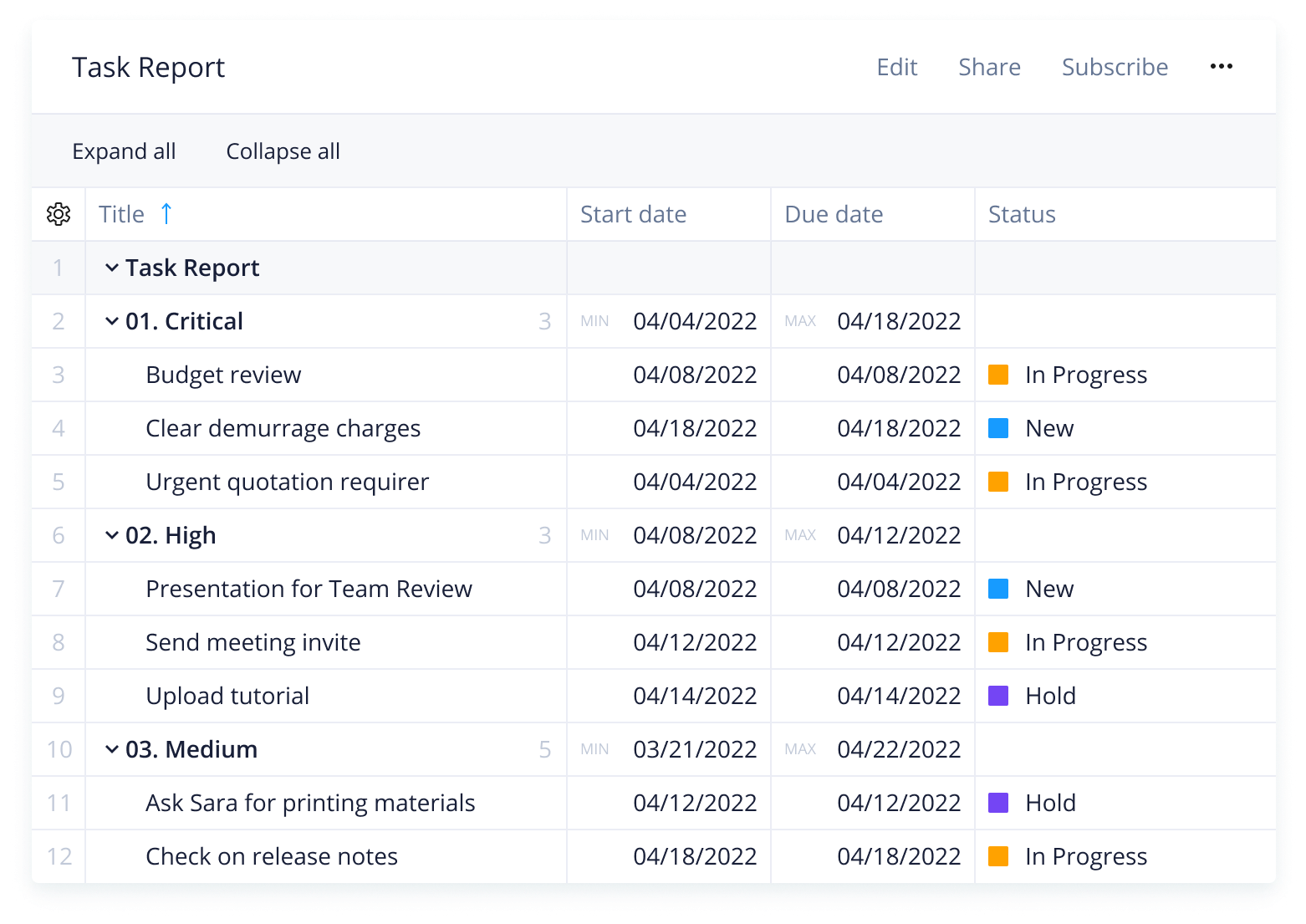
Task Report: An easy way to keep track of all your tasks in a list according to task priority and deadline details
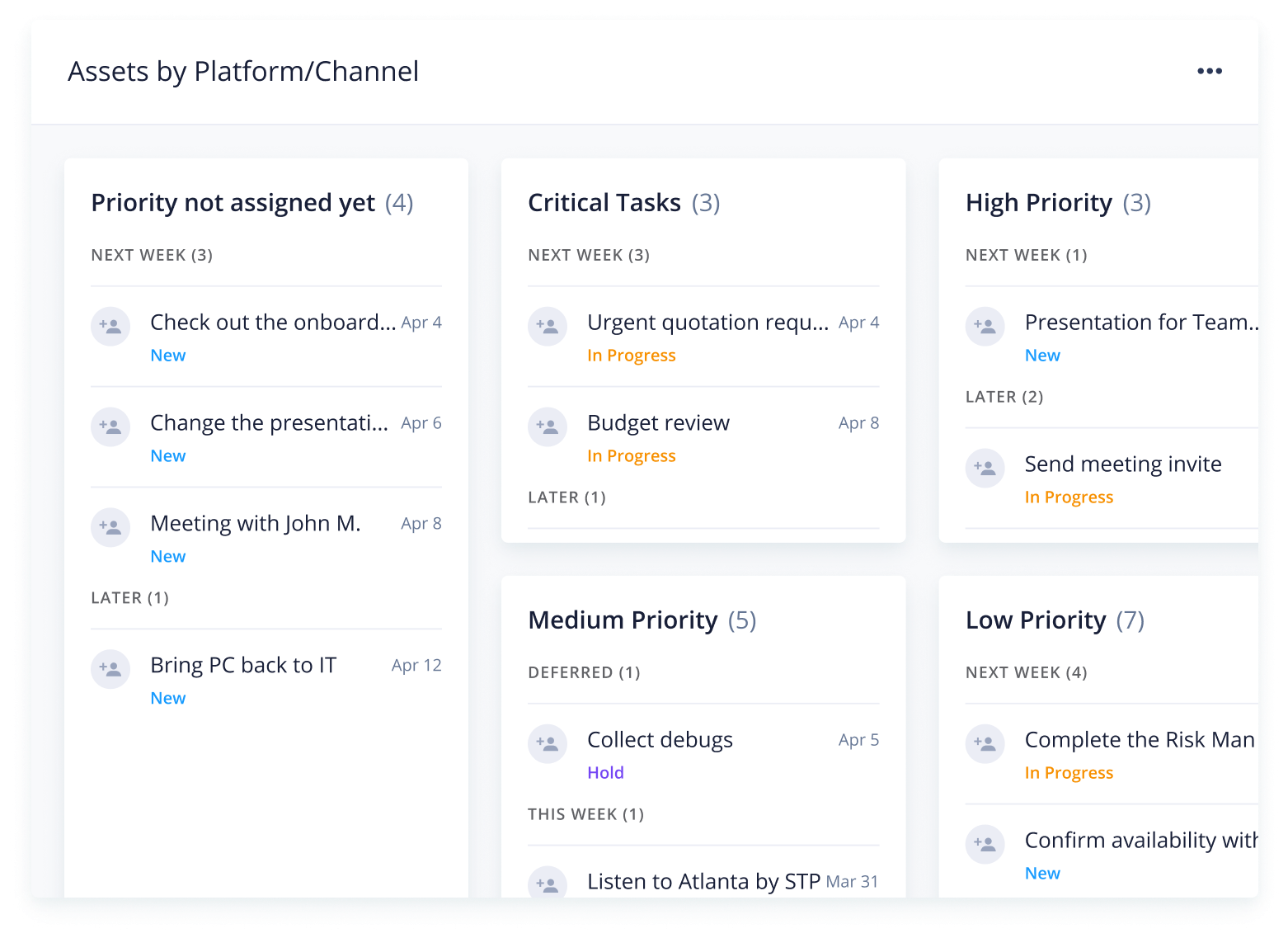
Task Dashboard: A better way to visualize tasks through individual dashboards according to priority and completion status. This is also particularly useful for organizing tasks that have uncertain priority levels upon creation, as they'll be sorted and viewable in a 'Priority Not Assigned' section
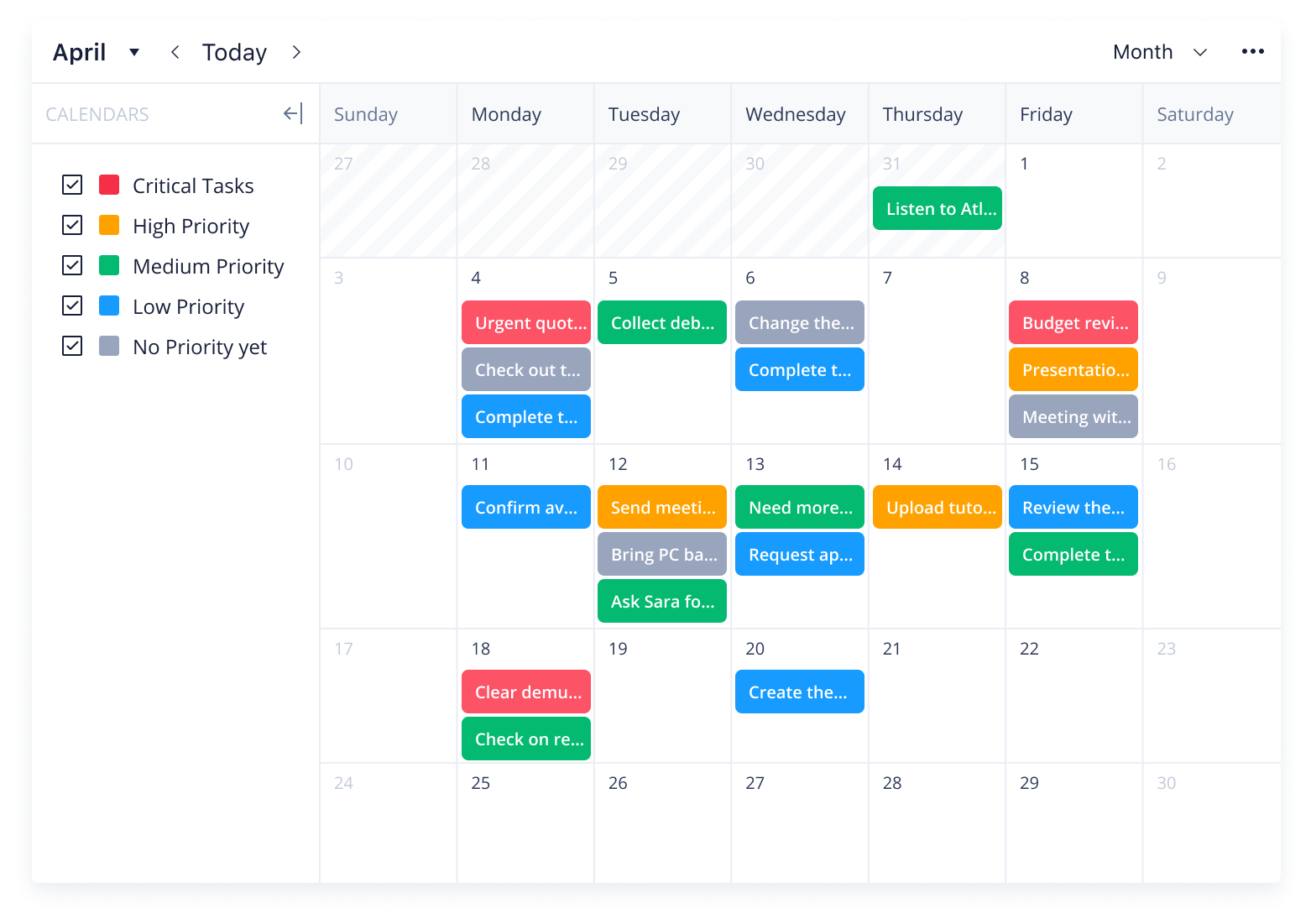
Task Calendar: Layered visibility across a calendar of priority tasks being tracked. This is an easy and ideal way to keep track of tasks in a to-do list based on deadlines and manage dependencies.
Step 3: Streamline workflows and resources
Now equipped with a way to better organize, visualize, and prioritize your daily tasks, you can easily streamline the way you work and acquire a more holistic view of what you need to get done each day.
Make Wrike work for you
Check out these additional features and discover new ways to customize your work process for better efficiency.
Wrike is infinitely customizable to fit your team’s unique workflow and collaborative needs, allowing you to choose the best features for your projects. Streamline processes, establish visibility, and do your best work with Wrike today.
Workflow and task management resources
eBook
Get access to the best productivity tips and embrace better task management
eBook
A complete guide to implementing best practices for resource management in the era of digital and remote work
Blog post
Find out why efficient workflow management and visibility are essential to optimizing workloads and resources
Any individual can benefit from the daily task template, which helps them better plan, prioritize, and execute tasks on a day-to-day basis.
Enter your business email linked to your Wrike account to gain instant access to this template.
Yes, the daily task tracker template is free and users with access include those on Wrike Business, Wrike Enterprise, and Wrike Pinnacle.
How to install this template in your account
You can only access this template when you create a new space. You can access the use case templates gallery through the space creation wizard. When you opt to create a new space, the template gallery opens by default.
Click the “+” button in the upper-right corner of your workspace.
Select “Space.”
On the page that opens, hover over the use case you want and click “Preview.” Look for the “Daily task tracker” template in the list (use the search bar if needed).
Now, you can see more information about the use case. Click “Select” to create a space.
Yes, there are.
To use this template, you need to have at least the Business plan or up. Check our plans here.
You must have the required permission to create a public space in your account.
If the template contains account-level custom fields, custom item types, workflows, request forms, or automation, you must have the permission required to create those items.
This template is only available when the workspace language is set to English.
Check the prerequisites above. If you don’t match one of the prerequisites, talk to your space admin or your account owner. If you match all the prerequisites and you still can’t see the “Daily task tracker“ template, feel free to reach out to the Wrike support team.
Unlock the power of Wrike’s templates
Use our smart search tool to explore versatile templates, designed for easy customization and streamlined project management.
Wrike enhances its website search experience using Google's Vertex AI Search and Conversation generative AI service. Users are cautioned that generative AI might produce inappropriate, inaccurate, offensive, or unintended results, and are advised against submitting explicit, harmful, offensive, or illegal content as search input. Neither Wrike nor Google uses your search inputs to train its machine learning models or for advertising purposes, but search activities may be collected and/or stored via cookies in accordance with our Privacy Policy if you previously registered on our website. These cookies can be deleted through your browser settings. Wrike's search service is not designed to be used in connection with your personal data or any sensitive data of any kind, which users must refrain from inputting.