IT teams can integrate this intuitive template into their workflows to better protect important data and ensure compliance with necessary governance guidelines. With this template, you can ensure your business can:
Clearly define standardized rules with which to comply
Evaluate where compliance stands for each project or asset
Easily cover both national and international standards (ISO, NIST, FIPS, etc.)
Streamline organizational processes and provide clear visibility into the audit progress
How IT teams benefit from this template
If standards aren’t consolidated
Whether internal or external, compliance depends on your teams being aligned on which standards to follow.
Deliver one source of truth for your standards. Ensure security through a unified set of procedures.
Undefined audit procedures
Poorly defined or inadequately planned audits can lead to significant delays and errors. This leads to problems with security and efficiency.
Wrike’s IT security policy template helps you easily manage and organize standards for each audit within a unified workflow.
Issues tracking compliance
Lack of clear visibility into the status of each policy, control, or sub-category can waste valuable time and exacerbate risk.
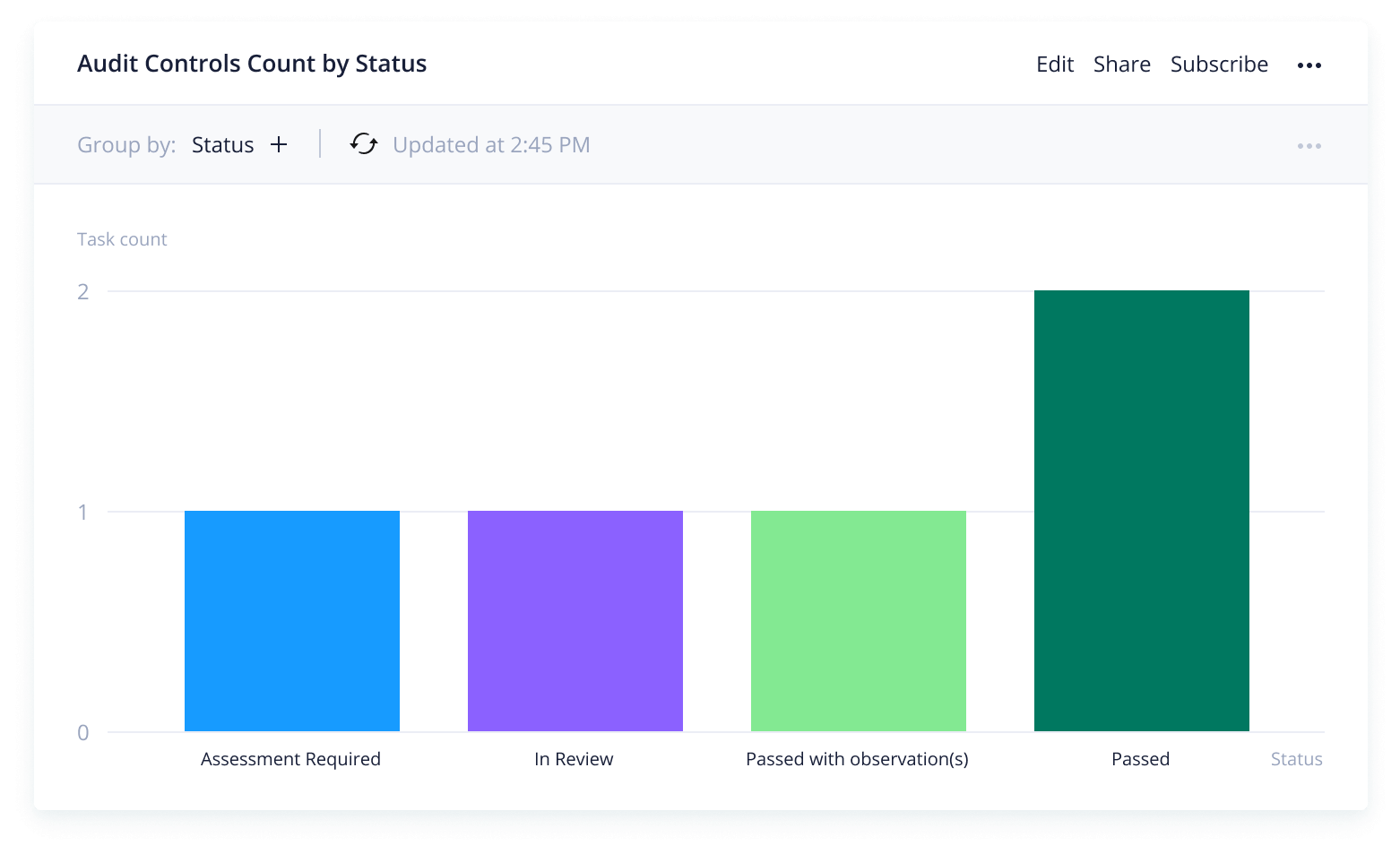
Use Wrike’s intuitive dashboards to provide full, real-time visibility of compliance statuses across multiple teams.
Ensure compliance and accelerate audits
How to use Wrike’s IT security template
Once you’ve integrated and loaded the template into your active workspace, you’ll notice it includes several prestructured folders that’ll help you get started right away. This section will demonstrate how to:
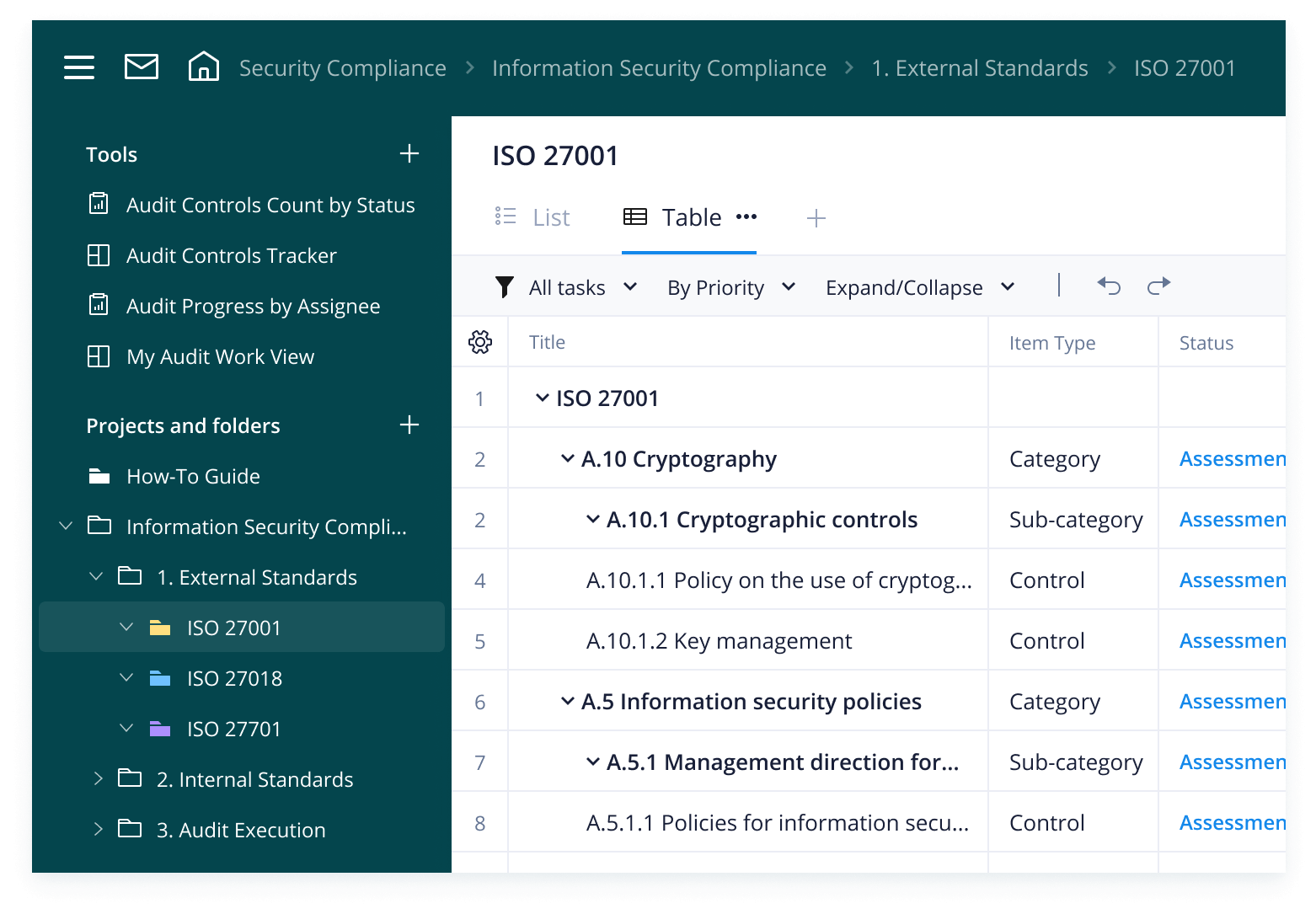
Organize and consolidate standards, controls, and categories into folders
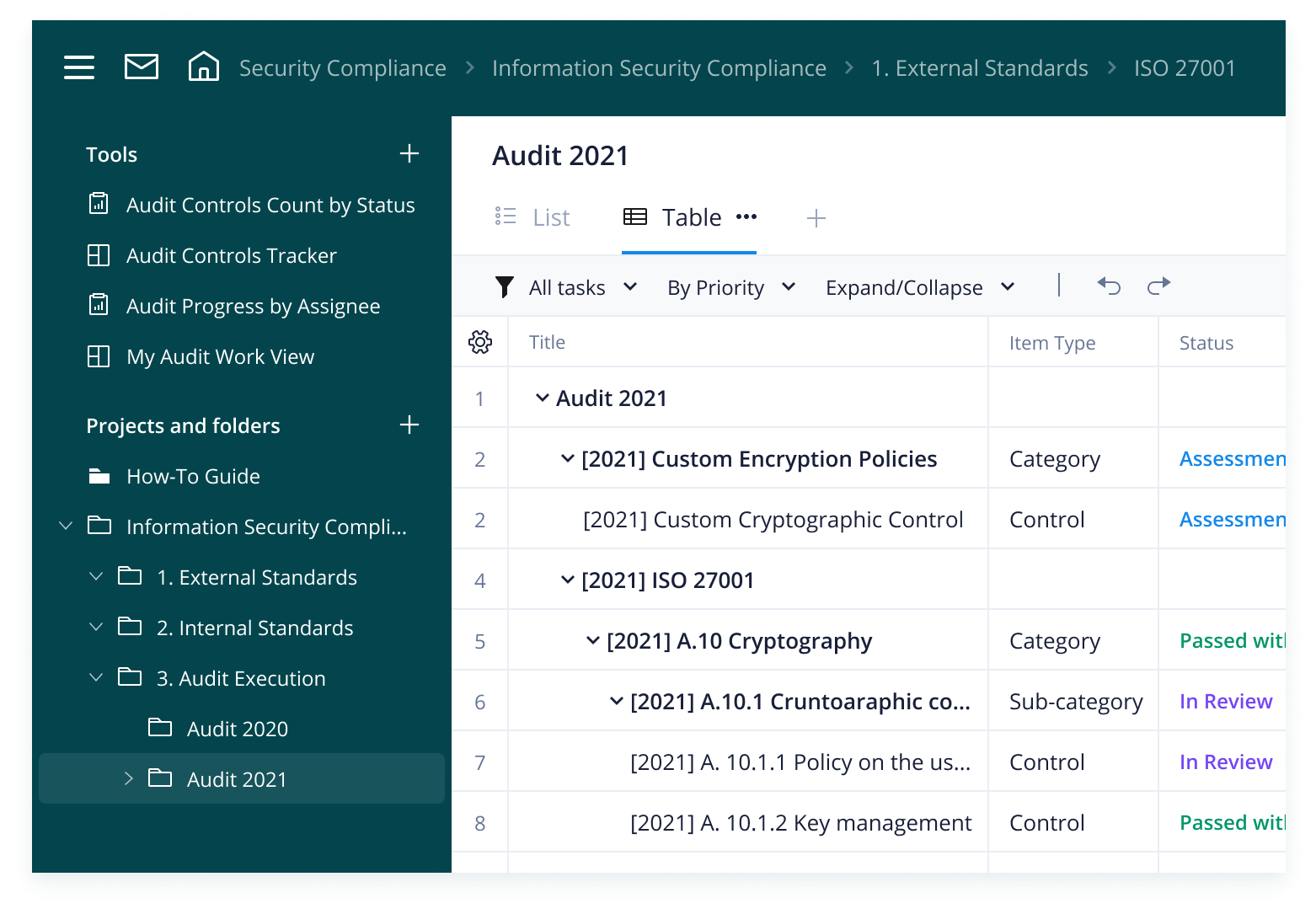
Utilize custom workflows to easily track and share status updates
Set up custom fields to clearly organize your categories, sub-categories, and controls for each standard
View complete reports that provide full, real-time visibility into audit controls and progress
Step 1: Defining standards
First things first — to check for security compliance, you'll need to define the compliance requirements.
Find a set of baseline specifications for your security processes, and integrate the security standards’ controls and sub-controls into the template’s folders. Utilize the template's custom fields to categorize item types as needed.
The template provides both an internal and external standards folder.
External standards are globally available rules, often used as a general guideline or definition across the industry. Users often need to pay in order to access the details of these standards' specifications.
Internal standards are criteria built in-house and thus require no purchase or cost. They often involve unique requirements and preferences based on each organization's security and governance needs while complementing the organization's external standards.
Step 2: Running audits
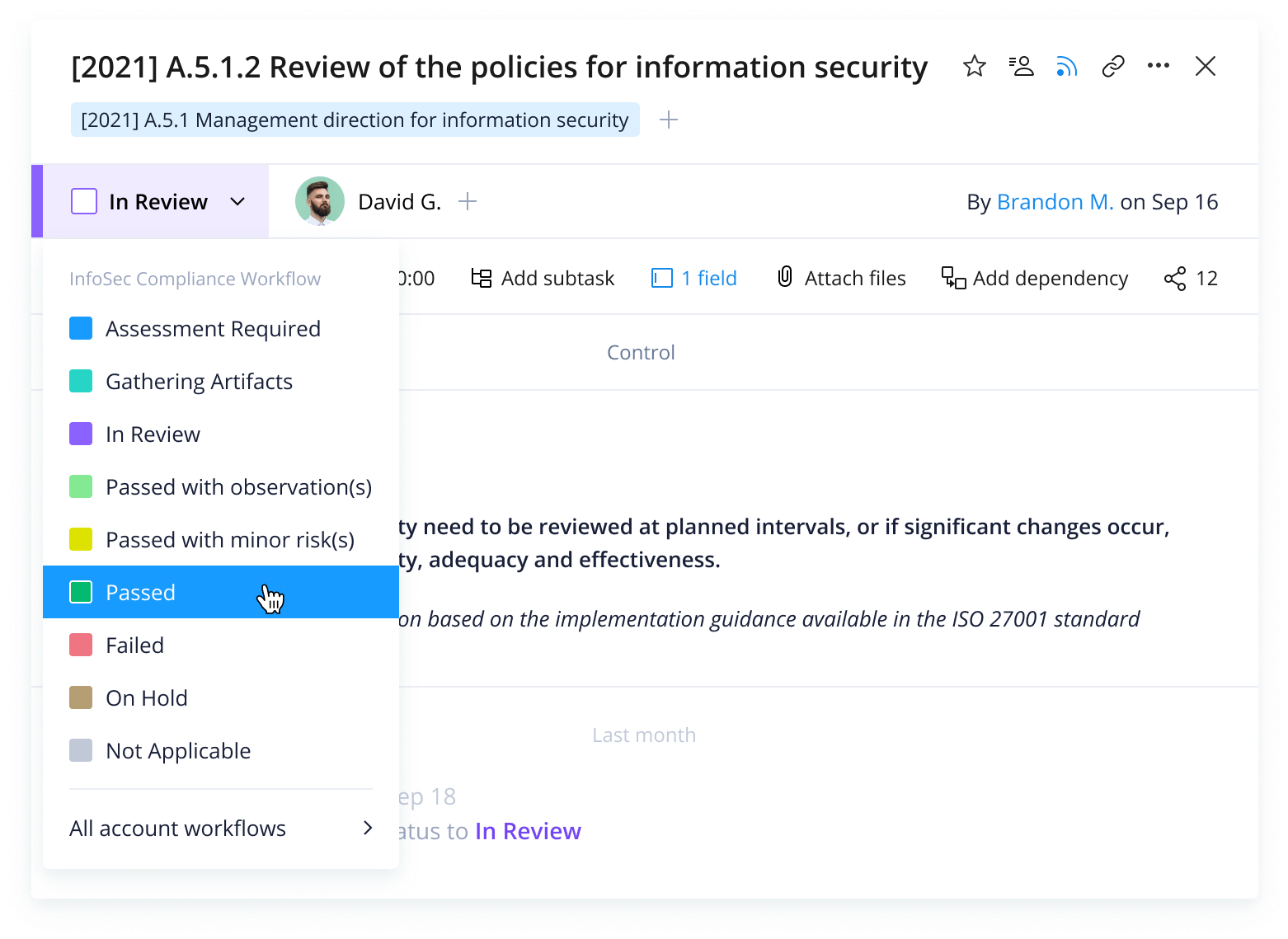
Once you've defined and chosen your standards, along with their categories and controls, it’s time to kick off the audit. To start managing the audit within Wrike, you can duplicate your desired standards of choice and add them to the “Audit Execution” folder.
You may choose to duplicate and add as many standards as needed for your audit.
In our template, we've segmented audits based on the year conducted.
If you're set with the standards and policies you need for your audit, you can begin following the instructions for each category and control based on their specific requirements for evaluation. As you progress, you can alter each item's custom status to track their progress, as well as the state or level of compliance.
Step 3: Reviewing progress
Once audits are underway or completed, the template’s two dashboards and two reports provide full visibility into the audit's controls, statuses, and general progress.
This template includes the following:
(Report) Audit Controls Count by Status – An overall count of all controls and which stage they’re in
(Dashboard) Audit Controls Tracker – A quick, bird's-eye view on the various assessments or audits underway
(Report) Audit Progress by Assignee – A convenient way for managers to view audits underway by assignee and the status of their work
(Dashboard) My Audit Work View – A user-specific view for individual assignees to utilize as they progress through assessments and controls to audit against
Make Wrike work for you
Creating a workplace of the future might be easier than you think. Check out additional Wrike features and provide your teams with the tools they need to do their best work.
Wrike is highly customizable and adjustable to meet the unique needs of each team that’s using it. Try out the many different features within Wrike to accelerate your processes and workflow today.
Check out other essential resources
Guide
Return to Work Guide
ebook
Digital Work Management & Collaboration: An IT Buyer’s Guide
ebook
Wrike’s Guide to Resource Management: Best Practices for Managing Resources in the Remote Work Era
Try Wrike’s IT security template now
Experience better work management today.
FAQ
The IT security template is Wrike's comprehensive compliance policy template solution. It enables you to clearly outline business compliance management strategies while streamlining compliance conformance and audit procedures.
Yes — the IT security policy template is customizable to fit your organization’s unique IT security and compliance policy needs.
This template is completely free to integrate and use.
How to install this template in your account
You can only access this template when you create a new space. You can access the use case templates gallery through the space creation wizard. When you opt to create a new space, the template gallery opens by default.
Click the “+” button in the upper-right corner of your workspace.
Select “Space.”
On the page that opens, hover over the use case you want and click “Preview.” Look for the “IT Security Governance and Compliance” template in the list (use the search bar if needed).
Now, you can see more information about the use case. Click “Select” to create a space.
Yes, there are.
To use this template, you need to have at least the Business plan or up. Check our plans here.
You must have the required permission to create a public space in your account.
If the template contains account-level custom fields, custom item types, workflows, request forms, or automation, you must have the permission required to create those items.
This template is only available when the workspace language is set to English.
Check the prerequisites above. If you don’t match one of the prerequisites, talk to your space admin or your account owner. If you match all the prerequisites and you still can’t see the “IT Security Governance and Compliance“ template, feel free to reach out to the Wrike support team.
Unlock the power of Wrike’s templates
Use our smart search tool to explore versatile templates, designed for easy customization and streamlined project management.
Wrike enhances its website search experience using Google's Vertex AI Search and Conversation generative AI service. Users are cautioned that generative AI might produce inappropriate, inaccurate, offensive, or unintended results, and are advised against submitting explicit, harmful, offensive, or illegal content as search input. Neither Wrike nor Google uses your search inputs to train its machine learning models or for advertising purposes, but search activities may be collected and/or stored via cookies in accordance with our Privacy Policy if you previously registered on our website. These cookies can be deleted through your browser settings. Wrike's search service is not designed to be used in connection with your personal data or any sensitive data of any kind, which users must refrain from inputting.