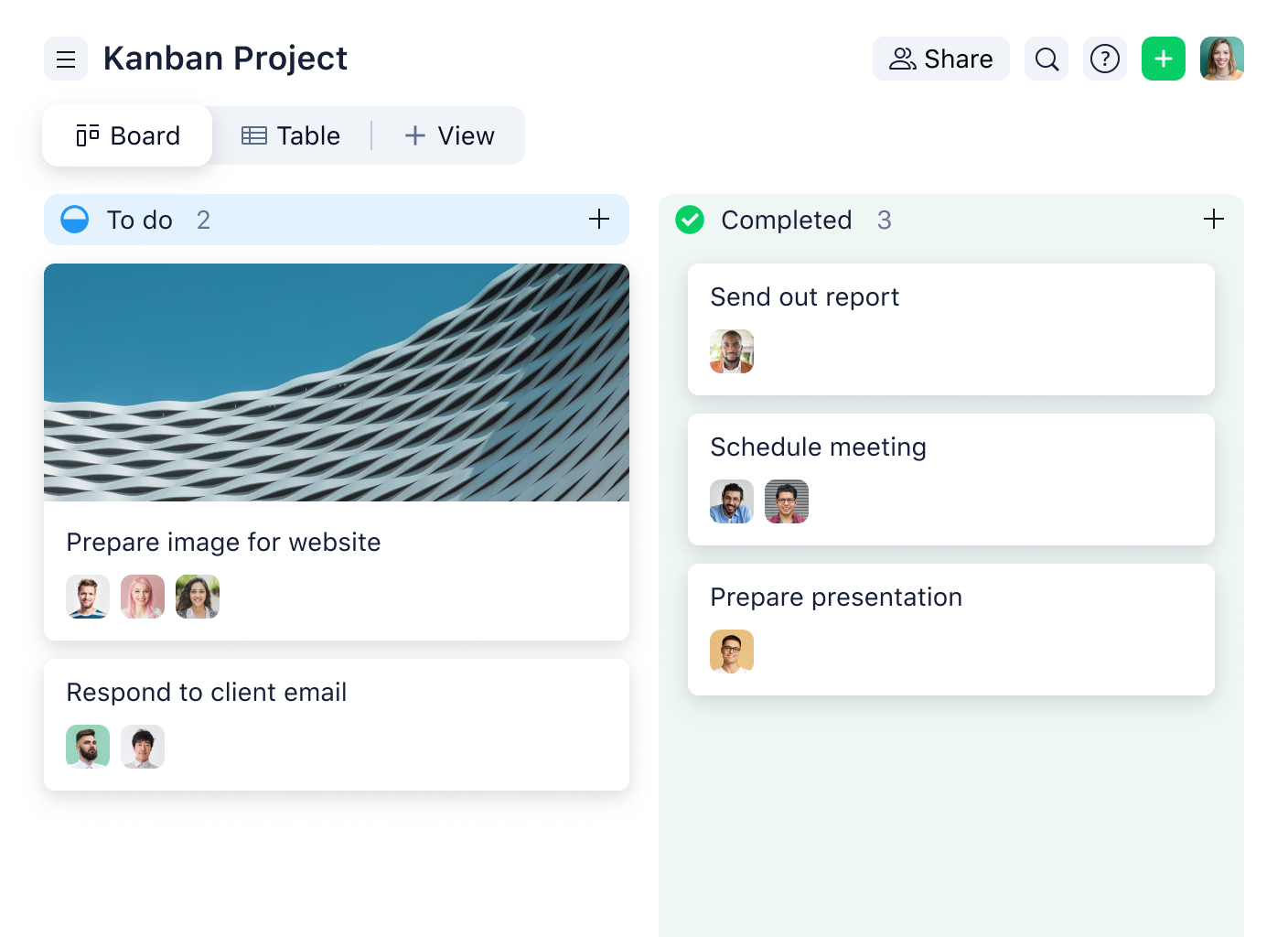
Practice Kanban-style project management with Wrike. Visually manage your project with boards, limit the amount of work in progress, focus on the flow, and improve your process as you go.
Visually manage your project, focus on flow, and make improvements with Kanban
Japanese for “visual signal” or “visual card,” the Kanban project management methodology was developed on factory floors to easily track the progress of work visually. Since then, Kanban has been adopted by software development teams to build digital products of all kinds.
Kanban project management represents individual tasks as cards that are moved along a board divided into the different stages of production. This puts the focus on a continuous flow of a small number of tasks, preventing teams from over-committing or getting distracted by lesser priorities.
Wrike is the perfect tool for building your own flexible Kanban board that is stored in the cloud so even distributed teams can have complete visibility. With this Kanban Project Template, you can ditch your sticky notes and whiteboards and make use of a powerful digital board view that’s completely customizable to meet your needs.
Why you need this template
Traditional methods don't scale
Using Wrike’s board view provides an always up-to-date Kanban board that’s visible and accessible to all team members. It also saves paper!
It's hard to spot roadblocks
The board view in Wrike provides full visibility by allowing each team member to drill into the task and see all communication and updates in context.
The format is too rigid
Wrike’s board view is completely customizable and dynamic. Build out different boards for each project with any combination of columns, workflows, custom statuses, and more.
This template will help you get up and running quickly with Wrike. Use it as a reference to managing a Kanban project with Wrike. The guide below shows you how to:
Start by defining the stages of your development workflow. Each column in the Board view represents a stage. This template comes with 5 sample stages to get you started: To-Do, Doing, Done, Canceled, Backlogged.
To create a new custom workflow, click the Settings button and then Manage Workflow.
Next, add cards that represent actionable tasks to each stage. Tasks can be assigned to one or more members of your team. This template includes some sample tasks that can be renamed or deleted as needed. To assign a task, click on a card, then click Add assignee, and select a member of your team. If the person is not in Wrike yet, simply add their email address and an invitation to join Wrike will be sent to them.
After a task has been assigned, click on the date selector to set the start and due date.
As the status of each task is changed, the card will automatically move to the next column. Cards can also manually be moved to any column by clicking and dragging to the desired position. Make sure to limit the amount of work in progress so you can focus on the flow and improve your process as you go.
The Kanban template works by allowing you to break down projects into a visual representation of task status and stages. This Kanban project template includes five sample phases to help users get started.
The Kanban project template can be used by any industry. Teams that need a scalable and highly visual way to manage their projects can benefit from using Wrike’s Kanban project template.
Set up your tasks as normal and drag them across the Kanban board as they are assigned and completed. Use the sample stages provided to indicate the status of a task. The sample stages are “to-do”, “doing”, “done”, “cancelled”, and “backlogged”.
Yes, it is possible to manage complex projects with a Kanban board. Kanban boards are scaleable but can break down any project into its simplest components and phases. It's clear what needs to be done, what's in progress, what has been completed, and what ideas can be preserved for later.
Scrum is a more iterative method of project development than Kanban. Scrum projects are often broken up into sprints — a set length of time where key parts of a project are delivered. Kanban, on the other hand, can adjust to changing priorities and represents a more real-time take on work and project management.
Kanban Project resources
Case Study
Learn how the largest staffing and recruiting company in the United States cut emails by 90%.
Case Study
Discover how Wrike brought irreplaceable efficiency to Fitbit’s launch process.
eBook
Learn the fundamentals of the most popular project management methodologies.
You might be interested in these templates
Agile teams
Agile Teamwork
Harness the power of Agile, an iteration-based approach to development. This Wrike template helps you prioritize a backlog for planning, manage sprints with boards, and track progress using reports.
Project management
Project Scheduling
A project template for classic, timeline-driven project management.
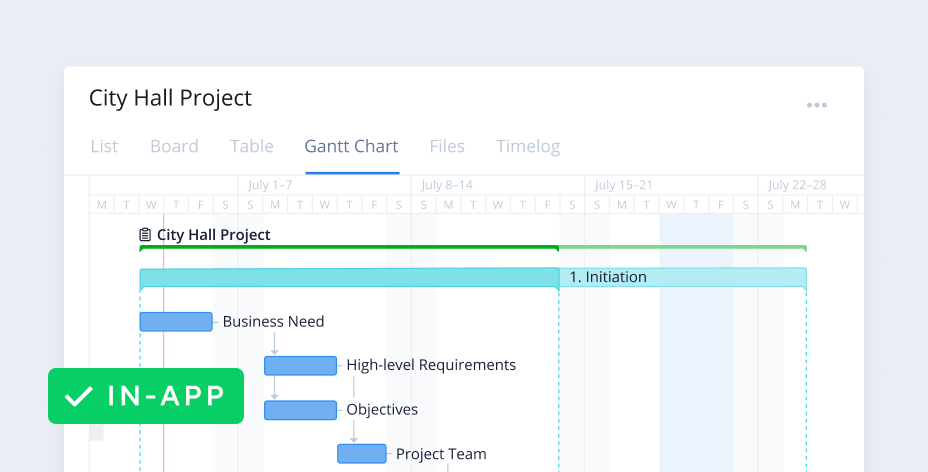
Split projects into actionable items, assign due dates, and track progress on a Gantt chart.
Project management
Complex Project With Phases
An effective, phased approach to project management. This template breaks complex projects down into manageable phases, allowing you to assign due dates to tasks and track progress on a visual timeline.
Agile teams
Agile Teamwork
Harness the power of Agile, an iteration-based approach to development. This Wrike template helps you prioritize a backlog for planning, manage sprints with boards, and track progress using reports.
Project management
Project Scheduling
A project template for classic, timeline-driven project management.
Split projects into actionable items, assign due dates, and track progress on a Gantt chart.
How to install this template in your account
You can only access this template when you create a new space. You can access the use case templates gallery through the space creation wizard. When you opt to create a new space, the template gallery opens by default.
Click the “+” button in the upper-right corner of your workspace.
Select “Space.”
On the page that opens, hover over the use case you want and click “Preview.” Look for the “Kanban project management” template in the list (use the search bar if needed).
Now, you can see more information about the use case. Click “Select” to create a space.
Yes, there are.
To use this template, you need to have at least the Business plan or up. Check our plans here.
You must have the required permission to create a public space in your account.
If the template contains account-level custom fields, custom item types, workflows, request forms, or automation, you must have the permission required to create those items.
Check the prerequisites above. If you don’t match one of the prerequisites, talk to your space admin or your account owner. If you match all the prerequisites and you still can’t see the “Kanban project management“ template, feel free to reach out to the Wrike support team.
Unlock the power of Wrike’s templates
Use our smart search tool to explore versatile templates, designed for easy customization and streamlined project management.
Wrike enhances its website search experience using Google's Vertex AI Search and Conversation generative AI service. Users are cautioned that generative AI might produce inappropriate, inaccurate, offensive, or unintended results, and are advised against submitting explicit, harmful, offensive, or illegal content as search input. Neither Wrike nor Google uses your search inputs to train its machine learning models or for advertising purposes, but search activities may be collected and/or stored via cookies in accordance with our Privacy Policy if you previously registered on our website. These cookies can be deleted through your browser settings. Wrike's search service is not designed to be used in connection with your personal data or any sensitive data of any kind, which users must refrain from inputting.