Outline goals, milestones, and deliverables to keep your product on track
Product roadmaps are strategic documents used for prioritizing development tasks, tracking progress, and aligning multiple teams. They communicate the vision around a product, creating clarity for internal and external partners, stakeholders, and team members.
Organize and prioritize development tasks by team, function, and quarter. Add custom fields to tag tasks with priority, projected revenue, team, or other filters. Use custom statuses to convey progress at a glance. View the project as a Gantt chart to get an overview of the entire timeline for product development.
Why you need this template
The existing product roadmap is just a list of features
Create custom fields to indicate the priority of each feature and use the Gantt chart view to highlight the overall sequence and strategy.
Several roadmaps exist and nobody knows which is most current
Use Wrike as your single source of truth and ensure everyone has the latest updates and adjustments.
The roadmap is too rigid and unrealistic
Use Wrike’s Gantt chart to make updating the roadmap easy for the entire team. Changes can happen in real time and are automatically shared among the team.
Organize your product development by team, quarter, and other tags
Add custom fields to help prioritize and filter features
Create custom statuses to show progress
View the project as a Gantt chart to visualize the timeline
Organize your project
Start by creating a folder for either your product or your product team. Within that folder, make folders for each quarter or other units of time depending on the speed of development. In each of these folders, create new projects for releases and fill them with the deliverables and steps for completion as tasks.
Track specific metrics through custom fields
To track and report on specific metrics for your development, you can use custom fields.
When data is entered in a custom field, it’s visible in the Table view, Task view, and folder and project info panels. Use share settings to keep custom field data private, or share fields with teammates to keep everyone on the same page.
To create a custom field:
1. Select a folder or project from the left navigation panel in the workspace.
2. Switch to Table view.
3. Click the + sign that appears on the right side of the table.
4. Type in a name for your new field and press Enter on your keyboard.
Specify field properties on the pop-up that appears. You have options to:Edit the field name
Once you've built your custom fields, view your project and all its components using the Table view in order to see all the details in a familiar spreadsheet layout.
Some ideas for custom fields to help with your product roadmap could include:
Team
Lead
Priority level
Type of release
Projected revenue
Create a custom workflow to indicate status
Account admins on Business, Pinnacle, and Apex plans can create a custom workflow.
1. Click your profile image in the upper-right corner of your workspace.
2. Select Account Management.
3. Switch to the Workflow tab. You’ll see a list of all workflows in the account.
4. Click + New workflow.
5. Enter your new workflow’s name. By default, it has the same status in the Active and Completed workflow categories.
Add statuses to your workflow: Click + Add Status at the bottom of any workflow group, enter its title, and select a color for that status.Some statuses you may want to include are:In production
Backlogged
Released
Rename, delete, or change a status color by clicking on that status.
6. Drag and drop statuses to arrange them in the order that makes the most sense for your team. The order you choose here is the order that they’ll appear in a task’s dropdown status menu.
7. Click Save in the upper-right corner.
When you create a new workflow, it becomes immediately available for all team members to see and use.
Change your project’s workflow:
Right-click on your project’s name from the workspace’s left navigation panel.
Hover over Change workflow on the drop-down menu.
Select the workflow you would like to apply.
See the roadmap as a Gantt chart
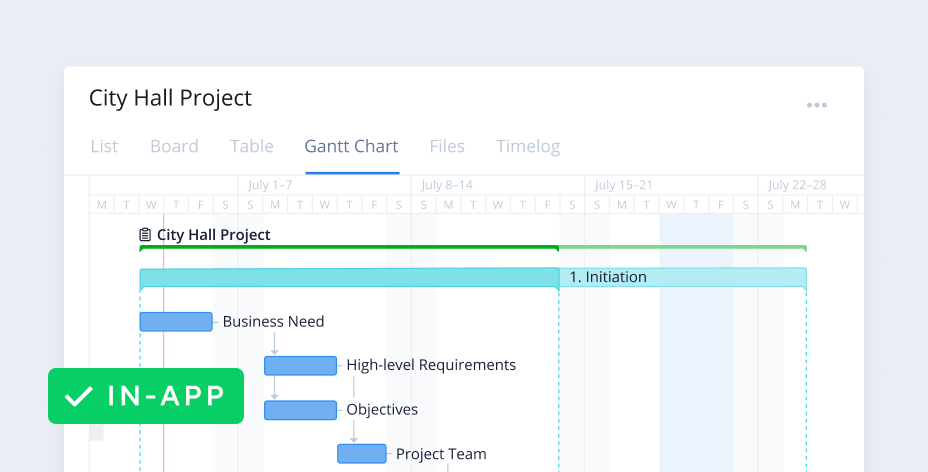
To get a visual overview of the product roadmap, click on the folder containing your project in the folder tree on the left, and then click on the Gantt Chart view. This displays the project and all tasks and dependencies on an interactive and dynamic timeline. You can focus on one phase or view the entire project. To adjust the length of any task, simply drag the due-date marker. Milestones are fixed and must be rescheduled independently.
FAQ
A product roadmap map is a document that helps track project progress and align goals across multiple teams. These roadmaps help clarify the messaging and goals around a product and provide an overview of project development.
When it comes to organizing tasks, Wrike’s product roadmap template allows users to organize tasks by team, function, quarter, and other tags.
Wrike’s product roadmap template is highly customizable. It can be adjusted to suit your team’s specific workflows. Custom fields and statuses mean you can track key metrics and continuously stay on target.
Yes! With Wrike’s Product Roadmap Template, you can use the Gantt chart view to gain an overview of project progress.
Harness the power of Agile, an iteration-based approach to development. This Wrike template helps you prioritize a backlog for planning, manage sprints with boards, and track progress using reports.
Project management
Project Scheduling
A project template for classic, timeline-driven project management.
Split projects into actionable items, assign due dates, and track progress on a Gantt chart.
Project management
Complex Project With Phases
An effective, phased approach to project management. This template breaks complex projects down into manageable phases, allowing you to assign due dates to tasks and track progress on a visual timeline.
Agile teams
Agile Teamwork
Harness the power of Agile, an iteration-based approach to development. This Wrike template helps you prioritize a backlog for planning, manage sprints with boards, and track progress using reports.
Project management
Project Scheduling
A project template for classic, timeline-driven project management.
Split projects into actionable items, assign due dates, and track progress on a Gantt chart.
Product Roadmap resources
Case Study
Discover how Wrike helped this technology hardware company reduce scrum periods by 80%.
eBook
The Agile methodology has the power to transform your team into a responsive, customer-centric organization, able to pivot quickly to capitalize on customer needs and market trends.
Unlock the power of Wrike’s templates
Use our smart search tool to explore versatile templates, designed for easy customization and streamlined project management.
Wrike enhances its website search experience using Google's Vertex AI Search and Conversation generative AI service. Users are cautioned that generative AI might produce inappropriate, inaccurate, offensive, or unintended results, and are advised against submitting explicit, harmful, offensive, or illegal content as search input. Neither Wrike nor Google uses your search inputs to train its machine learning models or for advertising purposes, but search activities may be collected and/or stored via cookies in accordance with our Privacy Policy if you previously registered on our website. These cookies can be deleted through your browser settings. Wrike's search service is not designed to be used in connection with your personal data or any sensitive data of any kind, which users must refrain from inputting.


 Use this guide to build the template in Wrike.