

Key takeaways:
- Wrike has added a dedicated Whiteboards tab to its sidebar, giving users a single centralized hub to view, open, and create all their whiteboards without hunting through folders or spaces.
- The new tab makes cross-functional collaboration easier by showing every board shared with a user in one place, alongside options to create new boards and attach them to specific spaces, projects, folders, or tasks.
- Teams can get started even faster with a built-in library of ready-to-use templates for common workflows like mind mapping and Agile ceremonies, plus an interactive Welcome Board for new users.
If you’re a whiteboard lover who thinks visually before moving on to execution, this update is for you!
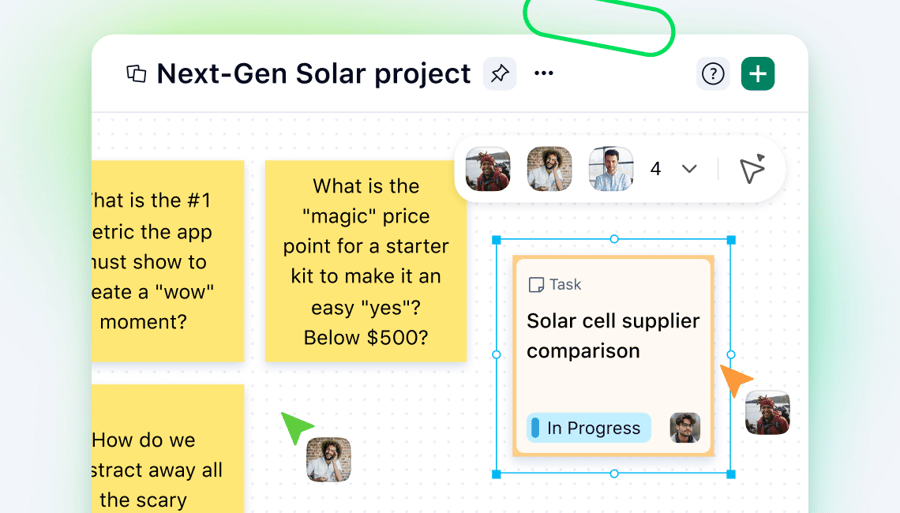
Wrike now includes a dedicated Whiteboards tab right in the interface, giving you a single hub to find, open, and create whiteboards without the extra clicks.
Think of it as a central space for every board your team works with. Whether you need to revisit a retrospective from last week or spin up a fresh canvas for your next brainstorming session, everything starts from one spot.
Finding your whiteboards just got a whole lot easier
The Whiteboards tab removes a small but real source of friction. Instead of remembering where a board lives or @mentioning a teammate in task comments to reshare it, you open a single view, and everything is there.
Click Whiteboards in the sidebar, and you’ll immediately see:
- The boards that have been shared with you
- The boards you’ve recently opened
- The spaces, projects, tasks, or folders these boards currently belong to
- The option to create a new board from scratch

Simplified visual collaboration for cross-functional teams
Cross-functional teams often juggle multiple — and, let’s be honest, complex — workflows, each with its own set of visual assets. A design team might run a brainstorming board while product managers maintain a roadmap canvas and engineers sketch out architecture flowcharts. When those boards are scattered across different folders and spaces, people lose track of what exists and where it lives.
The Whiteboards tab in Wrike solves this by serving as a unique access point that spans team boundaries. Everyone sees the boards shared with them in a single view, regardless of which team created them.
Focus on speed, not on product frictions. When access is that simple, staying aligned across departments happens naturally.
How to create a new whiteboard for every need
Now, there are two ways to create a new whiteboard in your Wrike workspace:
- First way (more specific): Within a space, click on Tools, then select Whiteboard to get started. Note that only space admins can create whiteboards directly in a space.
- Second way (more centralized): Click Whiteboards in the sidebar, then hit the + Whiteboard button above the list.
If you choose the second option, a pop-up window will let you name and add your new whiteboard to your spaces, projects, folders, or tasks. If added to spaces, whiteboards will appear in the Tools section of your sidebar. However, if added to tasks, projects, or folders, they will be attached as files.

Creating a new whiteboard from the Whiteboards tab
Get started faster with whiteboard templates
What could be even better than creating a whole new visual workspace in a centralized and accessible way? The fact that you can actually get it fully ready for collaboration in just seconds!
To help you, there’s an entire library of ready-to-use templates inspired by renowned methods — from mind mapping and visual planning to Agile ceremonies — to save you time on preparation and get your collaboration rolling faster.
If you’re not yet familiar with Wrike Whiteboard, there’s also an interactive pathway to guide you through the basics and inspire you for the next steps. You can find it as the Welcome Board in the template library.

Interactive onboarding whiteboard in Wrike
Time to go visual!
The Whiteboards tab is already live in your Wrike workspace. Click it, explore your boards, and see how much faster it feels to get to the right canvas.
From kickoff meetings to project retrospectives, strategic planning workshops, design reviews, and cross-team alignment meetings, visual collaboration is key to turning complex ideas into shared understanding. In fact, according to SSRN, 65% of people are visual learners — they need to see the information to absorb it properly. When teams can see the same picture, decisions happen faster, alignment comes easier, and work moves forward with fewer misunderstandings.
And this is just the beginning. We’re continuing to make visual collaboration a seamless part of how you work in Wrike — so stay tuned for what’s next!
More resources to get started
- Wrike Whiteboard discovery guide: Learn how whiteboards can help with brainstorming, planning, and organizing projects in Wrike while eliminating friction.
- Create your first retrospective whiteboard in Wrike: Dive into a concrete whiteboard use case and set up an effective visual retrospective without leaving Wrike.
- Expert lessons on visual collaboration: Get an exclusive look at how the Klaxoon visual platform, which now powers Wrike Whiteboard, was developed from the perspective of our Product Design expert.